Deep linking sounds simple on paper. A user taps a link, the app opens, and they land on the exact screen they need. In reality, anyone who has implemented Universal Links (iOS) or App Links (Android) knows it rarely works that smoothly.
Sometimes the app opens. Sometimes the browser opens. Sometimes nothing happens at all. Email providers break links with tracking wrappers, hosting platforms silently rewrite files, and mobile OSes often decide a domain isn’t “trusted” without telling you why.
If you’ve ever spent hours trying to understand why a link works on Android but not on iOS, or why Gmail refuses to trigger your app, you’re in the right place.
Here's the plan
Universal Links and App Links only work when four layers line up correctly. In this guide, I’ll walk you through each one:
- Your domain
How to set up AASA and assetlinks.json so iOS and Android trust your URLs. - Your mobile apps
What needs to be in your iOS entitlements, Android manifest, and native URL handlers. - Your hosting or framework
How platforms like Next.js, Firebase, or Vercel can break Universal Links if they rewrite or redirect files. - Your client-side logic
How to map URL paths and query params inside React Native so the right screens open.
By the end, you’ll understand how these pieces fit together, why Universal Links often fail silently, and how to debug them quickly when they do.
Deep linking basics
Before we get into implementation, it’s important to understand the two types of deep links you’ll deal with: custom URL schemes and Universal/App Links. Both open specific screens inside your app, but they behave very differently and serve different purposes.
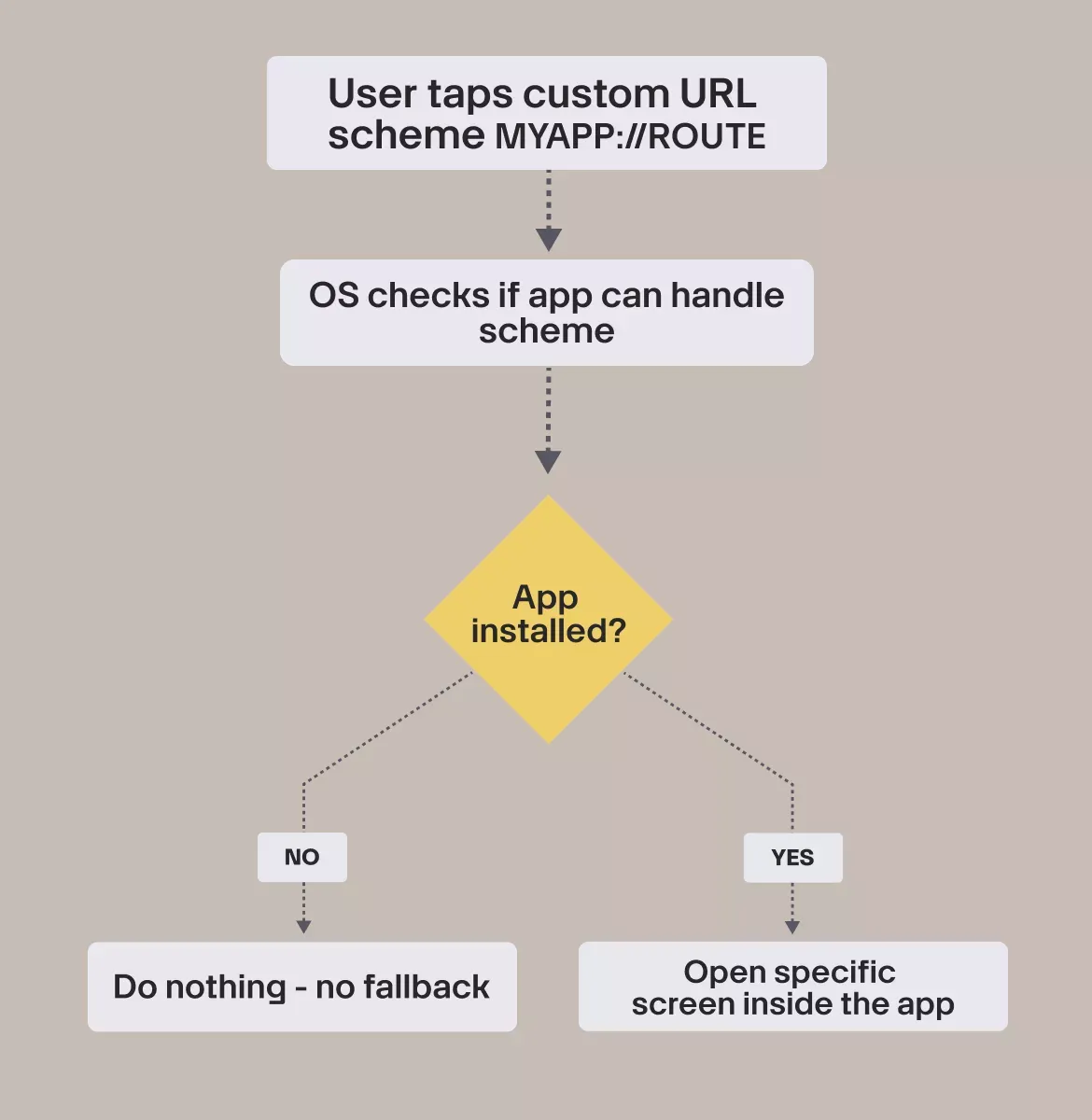
Custom URL schemes
Custom schemes look like:
myapp://reset-password?token=123
They’re simple and useful for internal navigation, but they come with serious limitations:
- They only work if the app is installed
- There’s no fallback (the link does nothing otherwise)
- Any other app can register the same scheme
- Some apps and email clients block them completely
Custom schemes are still good for certain in-app flows, but they’re not reliable for anything being sent from outside the app.
Universal Links (iOS) and App Links (Android)
This is the modern approach. Both platforms moved to secure deep links based on HTTPS + domain verification.
A Universal/App Link looks like a regular link:
https://example.com/reset-password?token=123
If the app is installed, it opens the correct screen.
If it’s not installed, the link falls back to the website.
Because the system verifies that your app “owns” this domain, these links are:
- More secure
- More predictable
- Supported across email, SMS, browsers, and most apps
- Designed to avoid hijacking or the wrong app opening your link
When to use what
Here's the simplest way to think about it:
- Use Universal/App Links for anything coming from outside your app
(email verification, invitations, password reset, shared links, notifications) - Use custom URL schemes for deep navigation within your app
(especially when moving between webviews or hybrid screens)
Quick comparison
| Feature | Custom URL Scheme | Universal/App Link |
|---|---|---|
| App not installed | ❌ Nothing happens | ✔ Opens website |
| Security | ❌ Can be hijacked | ✔ Verified domain ownership |
| Reliability across apps | ❌ Inconsistent | ✔ Works across major clients |
| Best use case | Internal navigation | External links (email, SMS, web) |
How universal & app links work
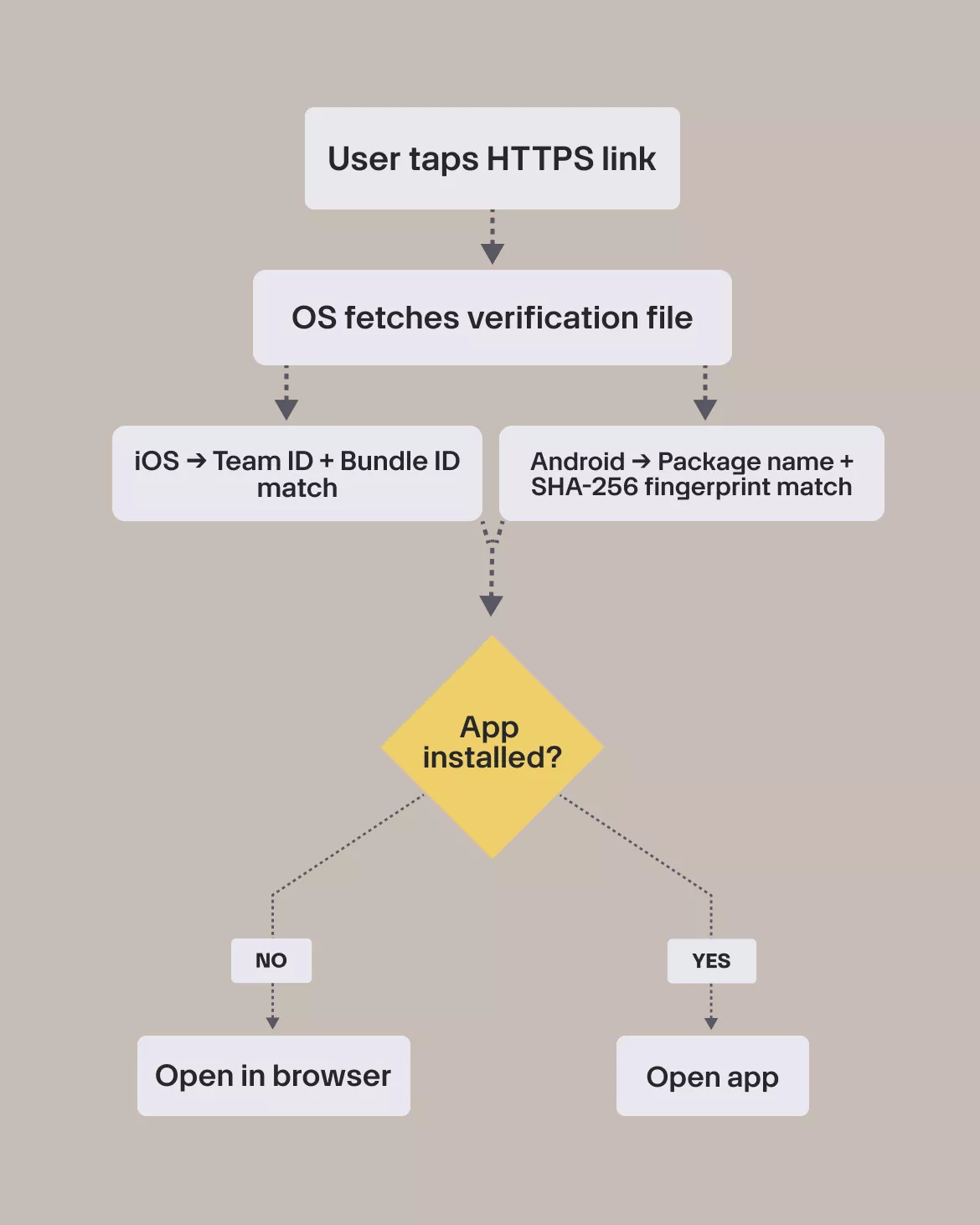
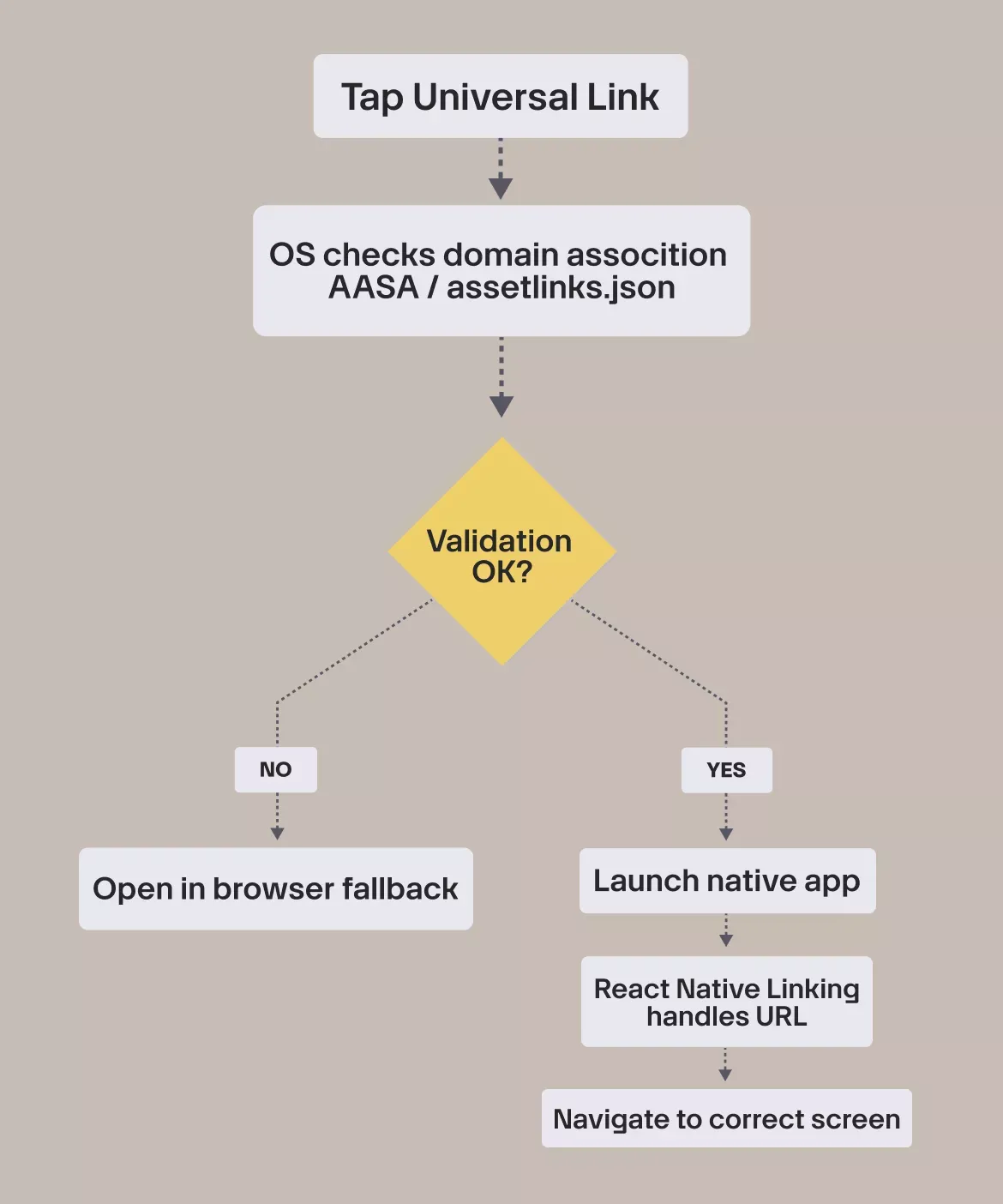
To make Universal Links (iOS) and App Links (Android) behave reliably, it helps to understand what actually happens when a user taps one. The OS doesn’t simply “open your app.” It runs a sequence of checks before deciding whether your link is trustworthy.
This is the part most developers never see, and the reason Universal Links often fail without explanation.
The OS decision flow
Domain verification
Universal/App Links rely entirely on domain verification.
If the OS can’t fetch your verification files, or if they’re served incorrectly, Universal Links will never open your app, no matter how perfect your mobile code is.
Common examples of what breaks verification:
- Verification files behind redirects
- Wrong
Content-Typeheader - File served as text/html instead of JSON
- Hosting platform rewriting routes to
index.html - Wrong domain (e.g.,
www.example.cominstead ofexample.com)
Once the OS fails verification, it often caches that failure. This is why uninstalling the app is sometimes required during testing.
App installed vs not installed
After verification, the OS chooses between two outcomes:
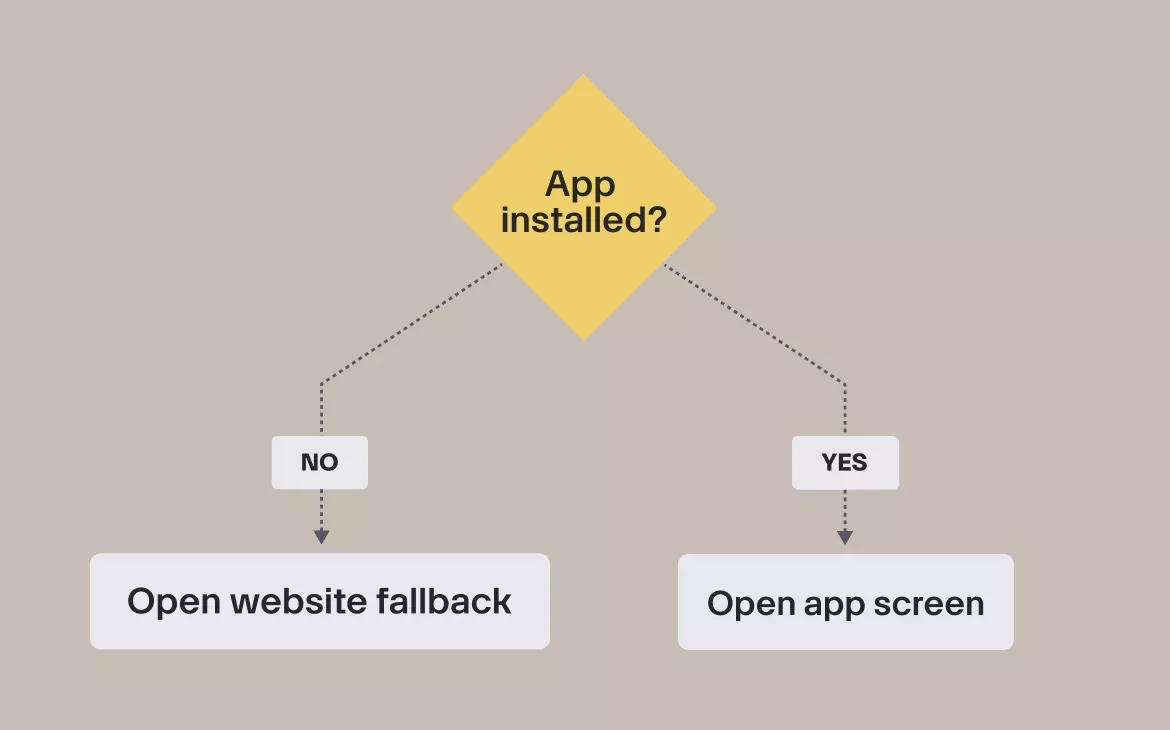
This is one of the biggest advantages over custom URL schemes: the user always lands somewhere meaningful.
Why fallback behavior matters
| Scenario | Result |
|---|---|
| App installed | Verification completes inside the app |
| App not installed | Browser opens and verification still succeeds |
| Domain misconfigured | Fallback breaks and users get stuck |
Real-world scenarios
Universal/App Links are most commonly used for:
- Email verification
- Password reset
- Invite flows
- Shared content
- Notifications that deep link into the app
- Webview → app handoff
These flows all rely on the same OS decision logic, which is why a single misconfigured domain can break all of them at once.
Web setup
Universal Links and App Links only work if your domain is configured correctly. This is the most sensitive part of the entire setup, and also the part that breaks the most often.
If iOS or Android can’t read your verification files with the exact format and headers they expect, the app will never open, even if everything else is perfect.
Verification files
Both platforms expect a file at a very specific path:
iOS
/.well-known/apple-app-site-association
- Must be raw JSON
- Must not have a
.jsonextension - Must use
Content-Type: application/json
Android
/.well-known/assetlinks.json
- Must be a valid JSON array
- Must contain the package name and the SHA-256 certificate fingerprint
- Must be served as
application/json
These files tell the OS: “This domain belongs to this app. It’s safe to open links directly.”
If the OS can’t load or parse these files, Universal/App Links will silently fail.
File hosting requirements
This is where most teams run into trouble. The OS expects all of the following to be true:
- HTTPS only
- No redirects (even a single 301 or 302 breaks verification)
- No authentication or cookies
- Exact path:
/.well-known/must be literal - Correct Content-Type header
- Status 200
- No index.html fallback (common issue with frameworks like Next.js)
If your hosting platform rewrites URLs or forces HTML responses, the OS won’t accept your domain.
Server constraints & checklist
Here’s a quick checklist to confirm your domain setup is correct:
- Both files live in
/.well-known/ - Served as
application/json - No redirects
- URL returns HTTP 200
- Accessible publicly (no auth, no tokens)
- Content is valid JSON
- Filename for AASA has no extension
- Hosting platform doesn’t override routes or headers
- Uses HTTPS
If even one of these is wrong, Universal Links won’t work.
Hosting examples
Different hosting platforms behave differently. Here’s how they fit into the setup:
Next.js
Place both files in:
/public/.well-known/
Since Next.js may default to serving HTML, you usually need custom headers in next.config.js:
{
  source: '/.well-known/apple-app-site-association',
  headers: [{ key: 'Content-Type', value: 'application/json' }]
}
Same for assetlinks.json.
Firebase hosting
Firebase serves static files correctly, but only if configured explicitly:
firebase.json
"headers": [
  {
    "source": "/.well-known/apple-app-site-association",
    "headers": [{ "key": "Content-Type", "value": "application/json" }]
  },
  {
    "source": "/.well-known/assetlinks.json",
    "headers": [{ "key": "Content-Type", "value": "application/json" }]
  }
]
Common Firebase issues:
- Serving files as
text/html - Rewrites overriding
.well-knownpaths - Deploying the wrong public folder
Vercel
Vercel requires custom headers in next.config.js or vercel.json. Without them, iOS may download your AASA file as an attachment — a guaranteed failure.
Common pitfalls:
- Preview domains (
*.vercel.app) don’t match your production domain - Wrong header defaults
- Missing
.well-knownfolder in the root of your public directory
Quick wrap-up
Your domain is the foundation of Universal/App Links. If the OS can’t read your verification files exactly the way it expects, the rest of your setup won’t matter.
Getting this part right ensures every link you send, email, SMS, notifications, shared content behaves consistently.
iOS implementation
Once your domain is configured, the next step is making sure iOS actually knows your app is allowed to open those links. This depends on three things:
- Your app being correctly configured in the Apple Developer portal
- Xcode having the right entitlements
- Your AppDelegate forwarding incoming URLs to React Native
If any one of these pieces is incorrect, Universal Links will fall back to Safari, even if everything else looks fine.
Apple Developer Portal setup
iOS will only trust your Universal Links if your app’s bundle ID explicitly declares support for Associated Domains.
Here’s what you need to do:
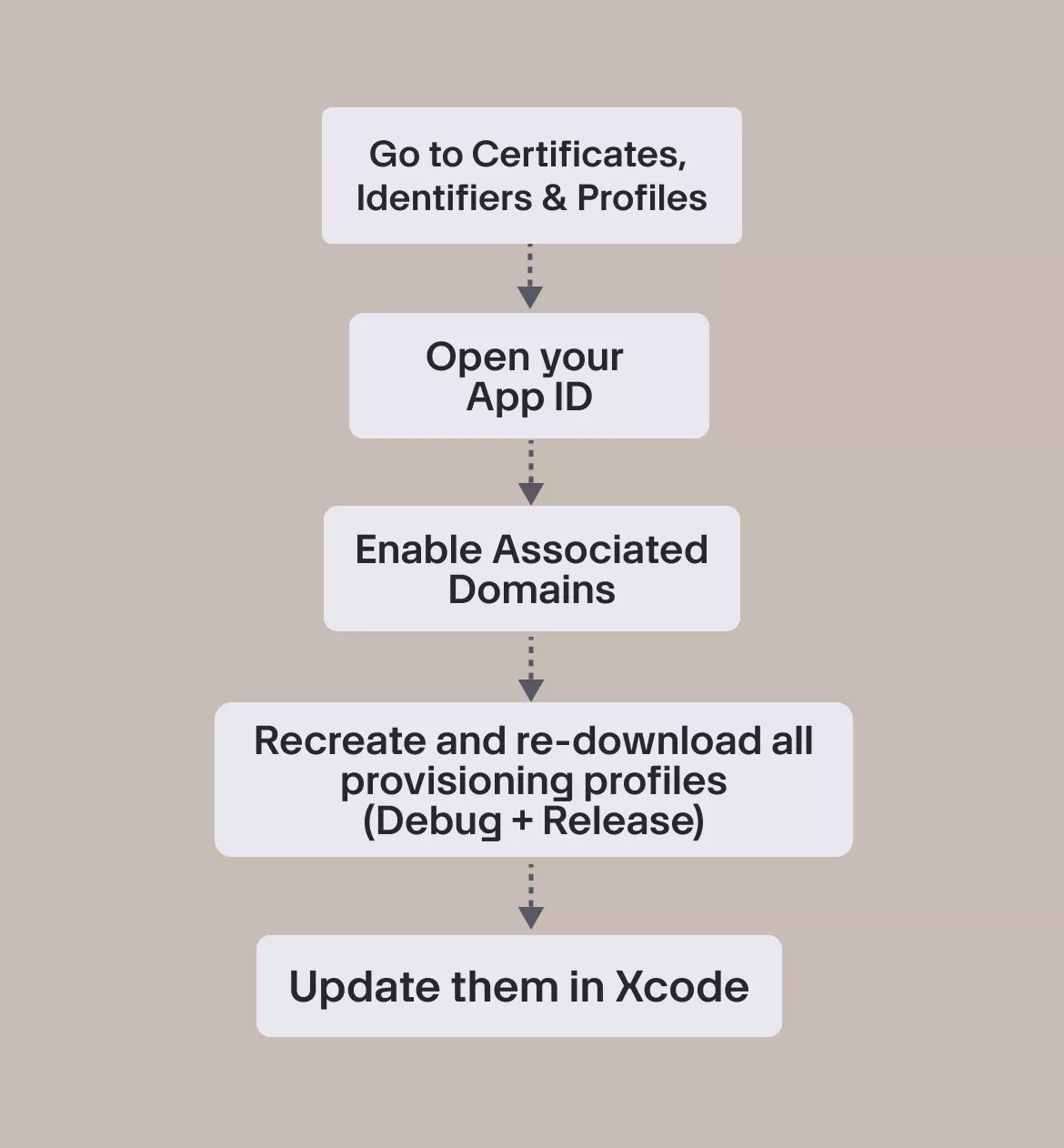
This step often gets missed. If you enable Associated Domains but don’t update your profiles, the device will never see the entitlement.
Add Associated Domains in Xcode
Next, you need to tell iOS which domains your app should handle:
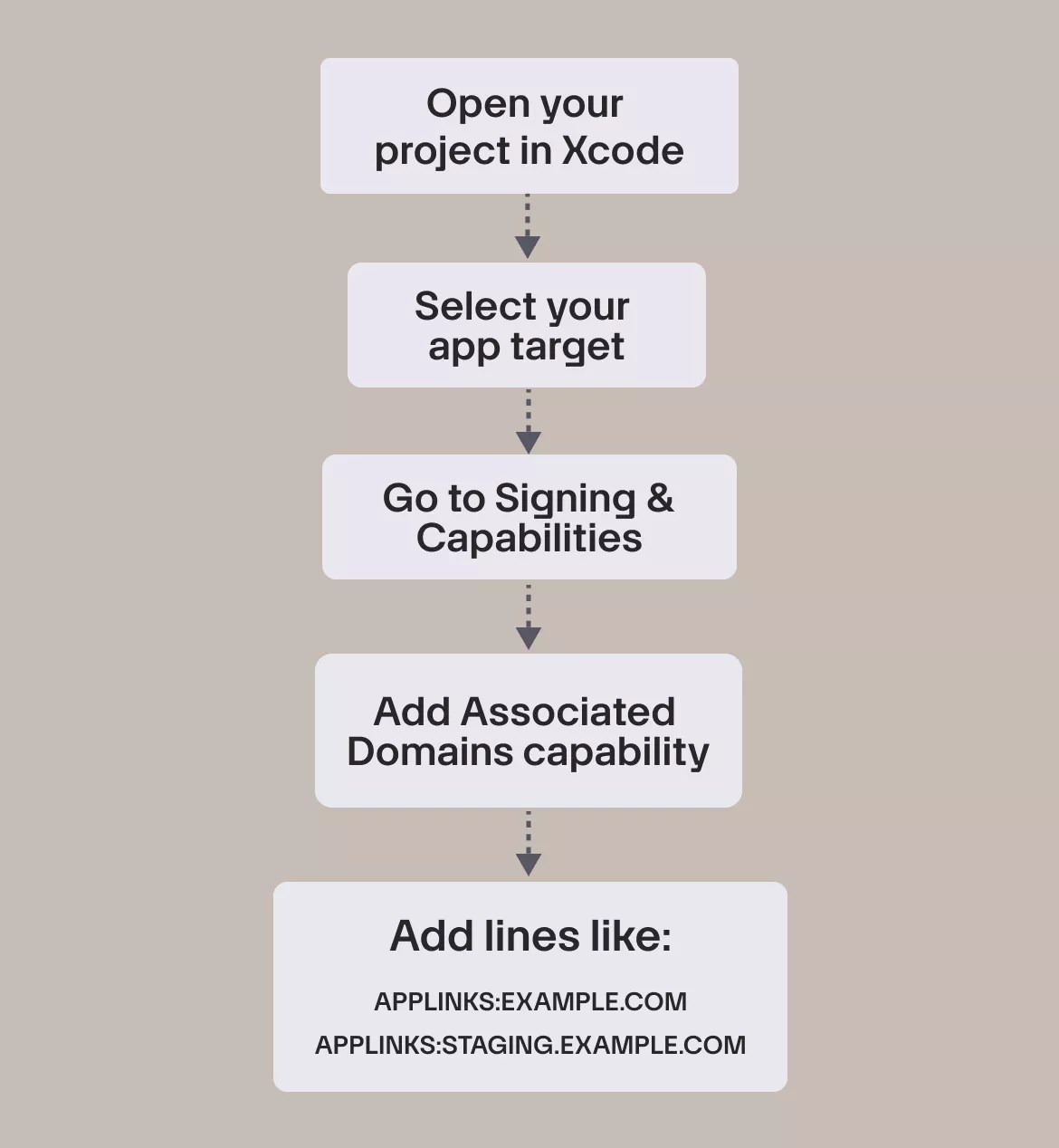
applinks:example.com
applinks:staging.example.com
Both the domain and subdomain must match exactly what’s in your AASA file.
Important:
After adding or modifying these domains, delete the app from your device and reinstall it. iOS only refreshes Universal Link permissions on install.
Handling universal links in the AppDelegate
When iOS decides your app should open a Universal Link, it hands the URL to your AppDelegate. If you use React Native, you need to forward it to RCTLinkingManager.
Add this to your AppDelegate:
#import <React/RCTLinkingManager.h>

- (BOOL)application:(UIApplication *)application
            openURL:(NSURL *)url
            options:(NSDictionary<UIApplicationOpenURLOptionsKey,id> *)options
{
  return [RCTLinkingManager application:application openURL:url options:options];
}

- (BOOL)application:(UIApplication *)application
continueUserActivity:(NSUserActivity *)userActivity
 restorationHandler:(void (^)(NSArray *))restorationHandler
{
  return [RCTLinkingManager application:application
                    continueUserActivity:userActivity
                      restorationHandler:restorationHandler];
}
iOS sends Universal Links through continueUserActivity: not openURL: so both are required.
Without this, the OS may open your app, but React Native won’t receive the URL.
Multi-environment support
If you have different environments (prod, staging, dev), add each domain in Xcode:
applinks:example.com
applinks:staging.example.com
applinks:dev.example.com
Each one needs:
- A matching AASA file
- HTTPS
- No redirects
iOS treats each domain independently, so one broken environment won’t affect the others.
Known iOS quirks
Here are the behaviors that confuse most teams:
- Universal Links do NOT work in the Simulator
- Safari does not auto-open apps from the address bar
- Safari shows an “Open in App” banner instead — this is normal
- iOS aggressively caches AASA files
- If a domain verification fails once, reinstalling the app is often required
- Testing from Gmail or Mail is mandatory, many flows don’t trigger from Safari
This is expected iOS behavior, not a bug in your setup.
What it all comes down to
On iOS, Universal Links depend entirely on:
- A correct App ID configuration
- Valid provisioning profiles
- Correct Associated Domains in Xcode
- AASA served properly
- Native URL handling in AppDelegate
Once these pieces are in place, iOS becomes very reliable, but getting them right requires precision.
Android implementation
Android handles deep linking differently from iOS, but the idea is the same: the OS checks whether your domain is associated with your app, and if everything matches, it opens the app directly.
The setup is straightforward on paper, but small mistakes in your manifest or assetlinks.json will cause Android to fall back to the browser every time.
What Android needs to trust your link
Android requires three things:
- A valid
assetlinks.jsonfile on your domain - An intent filter in your
AndroidManifest.xml - A matching SHA-256 fingerprint from your signing key
If any of these don’t match exactly, Android won’t verify your domain.
Add App Links intent filter in AndroidManifest
Inside the <activity> that should handle the link (usually MainActivity), add:
<intent-filter android:autoVerify="true">
    <action android:name="android.intent.action.VIEW" />
    <category android:name="android.intent.category.DEFAULT" />
    <category android:name="android.intent.category.BROWSABLE" />

    <data
        android:scheme="https"
        android:host="example.com"
        android:pathPrefix="/reset-password" />
</intent-filter>
A few important notes:
android:autoVerify="true"tells Android to automatically check yourassetlinks.jsonfile when the app is installed.android:hostmust match your domain exactly — subdomains included.android:pathPrefixdefines which URLs should open the app.
If you need multiple routes, repeat the <data> block or add multiple prefixes.
Multi-environment support
If you have separate staging / dev / production domains, add a <data> block for each:
<data android:scheme="https" android:host="example.com" android:pathPrefix="/" />
<data android:scheme="https" android:host="staging.example.com" android:pathPrefix="/" />
Each domain must have its own matching assetlinks.json.
Assetlinks.json requirements
Your assetlinks file must look like this:
[
  {
    "relation": ["delegate_permission/common.handle_all_urls"],
    "target": {
      "namespace": "android_app",
      "package_name": "com.example.app",
      "sha256_cert_fingerprints": [
        "YOUR_SHA256_FINGERPRINT"
      ]
    }
  }
]
Common mistakes include:
- Using the wrong fingerprint (debug vs release)
- Serving the file with redirects
- Incorrect
Content-Type - Missing JSON array wrapper
Android will only open your app if the OS can verify:
domain ↔ package name ↔ certificate fingerprint
Reading the link inside MainActivity
React Native will not receive a link unless you forward it from your Activity.
In MainActivity.java:
@Override
protected void onCreate(Bundle savedInstanceState) {
    super.onCreate(savedInstanceState);

    Intent intent = getIntent();
    Uri data = intent.getData();
    // React Native picks this up through Linking
}
React Native uses Linking.getInitialURL() for cold starts and event listeners for runtime links.
Checking Android’s domain verification
You can check whether Android trusts your domain with:
adb shell pm get-app-links com.example.app
If everything is correct, you’ll see:
VERIFIED: example.com
If you see UNVERIFIED, it means:
- assetlinks.json is wrong
- Your fingerprint doesn’t match
- The OS couldn’t fetch your file
Known Android quirks
Android’s behavior varies across manufacturers and OS versions:
- Domain verification can take a few minutes after install
- Some devices show an app picker even when verification succeeds
- Using a debug build with a release fingerprint will never work
- Links from some apps (e.g., Slack) may show a dialog the first time
These aren’t bugs, they’re normal Android inconsistencies.
To make Android App Links work
- Configure a correct intent filter
- Deploy a valid
assetlinks.json - Use the correct SHA-256 fingerprint
- Confirm domain verification with ADB
Once verified, Android reliably opens the app for every matching URL, unless something in the chain breaks, which we’ll cover in the debugging section.
React native integration
Once iOS and Android know your app is allowed to open Universal/App Links, the final step is making sure React Native can actually use the incoming URL.
This is where you define which screen should open, how URL paths map to routes, and how query parameters reach your components.
React Native won’t handle any of this automatically; you need to configure it.
How React Native receives URLs
React Native gives you two entry points:
- Cold start:
Linking.getInitialURL()returns the URL that opened the app. - While the app is running:
Linking.addEventListener('url', handler)fires whenever a link is tapped.
Both rely on native code forwarding the URL, which we set up earlier in AppDelegate (iOS) and MainActivity (Android).
Create a linking configuration
If you’re using React Navigation (most apps do), you can define how URLs map to screens through the linking config.
Example:
const linking = {
  prefixes: [
    'https://example.com',
    'https://staging.example.com',
    'myapp://', // optional custom scheme
  ],
  config: {
    screens: {
      Root: {
        screens: {
          ResetPassword: {
            path: 'reset-password',
          },
          Invite: {
            path: 'invite',
          },
        },
      },
    },
  },
};
This tells React Navigation:
- Any link starting with
https://example.com - With a path like
/reset-password?token=123 - Should open the
ResetPasswordscreen - And pass
tokenintoroute.params
React Navigation handles the parsing automatically.
Mapping URL paths to screens
A few conventions help keep things clean:
- Use lowercase, dash-separated paths
- Define one path per screen
- Explicitly map nested navigators to avoid ambiguity
For example:
https://example.com/email-verification?oobCode=123
→ EmailVerification screen
This ensures both platforms behave the same for the same URL.
Getting query params inside your screen
React Navigation parses query parameters by default.
In your screen:
const route = useRoute();
const { token } = route.params || {};
You don’t need to manually parse the URL - React Navigation does it for you as long as the linking config is correct.
Attach linking to NavigationContainer
Finally, plug everything into your navigation root:
import { NavigationContainer } from '@react-navigation/native';

export default function App() {
  return (
    <NavigationContainer linking={linking}>
      <RootNavigator />
    </NavigationContainer>
  );
}
Now your app knows how to resolve URLs like:
https://example.com/reset-password?token=abc
and open the right screen on both iOS and Android.
Full flow: from tap → screen
Here’s the complete lifecycle when a user taps a Universal/App Link:
- User taps
https://example.com/reset-password?token=123 - iOS/Android check domain verification
- OS decides to open your app
- Native layer receives the URL
- iOS →
continueUserActivity - Android →
intent.getData()
- iOS →
- Native layer forwards the URL to React Native
NavigationContainerreads the URL- React Navigation finds a matching path
- Query params (e.g.
token) becomeroute.params - The correct screen opens instantly
When every layer is set up correctly, this flow is extremely reliable.
Pulling it all together
React Native’s job is simple once the native setup is done:
- Define your URL prefixes
- Map paths to screens
- Read params using
useRoute() - Attach your linking config to the NavigationContainer
This keeps your deep linking logic predictable and consistent across iOS and Android, and ensures users land exactly where they need to.
Testing & debugging
Universal Links and App Links don’t break because of one obvious error, instead they break because several small pieces need to align perfectly across the web, iOS, Android, and React Native. Testing is tricky, and debugging usually requires checking each layer step by step.
This section covers the most reliable ways to test and the most common reasons things fail.
General testing principles
Before testing anything:
- Always use real devices (iOS Simulator does not support Universal Links).
- Test using a fresh install, iOS caches AASA files aggressively.
- Test from actual apps like Gmail or Mail, not from Safari’s address bar.
- Make sure your link is a fully qualified HTTPS link.
- Avoid any kind of redirect, tracking wrapper, or shortened URL.
If you skip these basics, you’ll end up chasing issues that aren’t actually your setup.
Why Universal Links fail
Universal Links and App Links usually fail for the same handful of reasons. Here’s a breakdown:
Web issues
These account for most failures:
- Wrong
Content-Type(file served as HTML instead of JSON) - Files behind redirects (301/302)
- Wrong file path (
/.wellknown/instead of/.well-known/) - Wrong domain (e.g.,
www.example.cominstead ofexample.com) - Hosting platform rewriting requests to
index.html - Assetlinks/AASA file not publicly accessible
If your domain fails verification, nothing else will work.
App configuration issues
- Wrong Team ID or Bundle ID in AASA
- Wrong SHA-256 fingerprint in
assetlinks.json - Missing Associated Domains capability (iOS)
- Missing or incorrect intent filter (Android)
- Native app not forwarding the URL to React Native
These issues are easy to introduce and easy to miss.
OS behavior issues
Some behaviors are “by design,” even if they feel like bugs:
- iOS Simulator does not support Universal Links
- Safari doesn’t auto-open apps; it shows a banner instead
- iOS caches AASA results for days
- Android may take a few minutes to verify domain ownership
- First tap on some Android apps may show a picker dialog
Testing on real devices and reinstalling the app often fixes these.
Email-related issues
Email clients break Universal Links more than anything else:
- SendGrid / HubSpot / Mailchimp add tracking wrappers
- Outlook SafeLink rewrites URLs through a Microsoft domain
- Gmail may encode or escape characters in your query params
- Shortened URLs (bit.ly, etc.) remove the original domain entirely
A wrapped link will never open your app, because the OS only trusts your domain, not the redirect domain.
Debugging flow (step-by-step)
Here’s the most efficient way to debug Universal Links:
1. Check the verification files directly
Open in Safari or Chrome:
https://example.com/.well-known/apple-app-site-association
https://example.com/.well-known/assetlinks.json
You should see raw JSON.
If the file downloads instead of displaying → wrong Content-Type.
2. Check iOS AASA fetch logs
Run this on your Mac:
log stream --predicate 'subsystem == "com.apple.nsurlsessiond"' --info | grep apple-app-site-association
Look for:
statusCode: 200Content-Type: application/json- No redirects
Anything else means iOS rejected your association.
3. Check Android domain verification
Use ADB:
adb shell pm get-app-links com.example.app
Expect:
VERIFIED: example.com
If it says UNVERIFIED, the fingerprint or assetlinks.json is wrong.
4. Test a direct app-open from ADB
adb shell am start \
  -a android.intent.action.VIEW \
  -d "https://example.com/reset-password?token=abc" \
  com.example.app
If the app opens → the manifest is correct.
If not → the manifest or assetlinks.json doesn’t match.
5. Test from email apps
Send yourself real emails from:
- Gmail
- Apple Mail
- Outlook
Testing from real email apps reveals issues you won’t see with Safari.
What to check
Testing Universal Links isn’t just “tap the link and see what happens.”
It’s running a systematic check across:
- Web hosting
- Verification files
- iOS entitlements
- Android signature matching
- React Native linking
- Real-world email clients
When all layers are aligned, Universal Links are fast and reliable. But the moment one piece drifts even slightly, the entire flow breaks, often without any error message. A structured debugging approach is the only way to get to the root cause.
Quick reference (cheat sheet)
Web setup
AASA (iOS)
- File at:
/.well-known/apple-app-site-association - No
.jsonextension - Served as
application/json - No redirects
- Publicly accessible
- Valid JSON
Example:
{
  "applinks": {
    "apps": [],
    "details": [
      {
        "appIDs": ["TEAMID.com.example.app"],
        "components": [
          { "/": "/reset-password", "?": { "token": "*" } }
        ]
      }
    ]
  }
}
assetlinks.json (Android)
- File at:
/.well-known/assetlinks.json - Served as
application/json - Contains correct package name
- SHA-256 fingerprint matches signing key
Example:
[
  {
    "relation": ["delegate_permission/common.handle_all_urls"],
    "target": {
      "namespace": "android_app",
      "package_name": "com.example.app",
      "sha256_cert_fingerprints": [
        "YOUR_SHA256_FINGERPRINT"
      ]
    }
  }
]
iOS setup
Associated Domains
- Enabled in Apple Developer Portal
- Enabled in Xcode
- Domains match AASA exactly
Example:
applinks:example.com
applinks:staging.example.com
AppDelegate forwarding
#import <React/RCTLinkingManager.h>

- (BOOL)application:(UIApplication *)application
continueUserActivity:(NSUserActivity *)userActivity
 restorationHandler:(void (^)(NSArray *))restorationHandler
{
  return [RCTLinkingManager application:application
                    continueUserActivity:userActivity
                      restorationHandler:restorationHandler];
}
iOS debug commands
log stream --predicate 'subsystem == "com.apple.nsurlsessiond"' --info
Android setup
Manifest
- Intent filter added
- Correct host + pathPrefix
- autoVerify enabled
Example:
<intent-filter android:autoVerify="true">
  <action android:name="android.intent.action.VIEW" />
  <category android:name="android.intent.category.DEFAULT" />
  <category android:name="android.intent.category.BROWSABLE" />
  <data android:scheme="https" android:host="example.com" android:pathPrefix="/" />
</intent-filter>
ADB verification
adb shell pm get-app-links com.example.app
Direct link test
adb shell am start -a android.intent.action.VIEW \
  -d "https://example.com/reset-password?token=abc" \
  com.example.app
React Native setup
Prefixes
prefixes: [
  'https://example.com',
  'https://staging.example.com',
  'myapp://'
]
Screen mapping
config: {
  screens: {
    ResetPassword: 'reset-password',
    Invite: 'invite',
  },
}
Getting params
const route = useRoute();
const { token } = route.params || {};
Email considerations
- Disable tracking for Universal Links
- Avoid shorteners (bit.ly, TinyURL)
- Avoid redirects of any kind
- Test on real Gmail, Apple Mail, Outlook
- Use raw HTTPS URLs only
SendGrid (disable tracking):
<a data-sg-no-track="true" clicktracking="off">
  https://example.com/reset-password?token=abc
</a>
Final sanity check before testing
| Check | Expected | Why it matters |
|---|---|---|
| AASA loads | Raw JSON, no HTML | iOS requires the exact format for domain association. |
| assetlinks.json loads | Raw JSON | Android rejects files served as HTML or behind redirects. |
| Redirects | None | Any redirect in .well-known breaks Universal Links. |
| iOS install | Fresh install | iOS caches AASA validation, so changes won’t apply otherwise. |
| Android domain | Verified in OS | App Links won’t trigger unless the domain is verified. |
| RN linking | Enabled + configured | Needed to open the correct screen once the app launches. |
| Email links | Raw URLs | Tracking wrappers and shorteners break deep links. |
Validation tools
| Tool | Platform(s) | What it checks | Link |
|---|---|---|---|
| AASA Validator (Branch) | iOS Universal Links | Validates your apple-app-site-association: HTTPS availability, correct Content-Type, JSON validity, correct appIDs and domain matching. |
https://branch.io/resources/aasa-validator/ |
| yURL Validator | iOS & Android (Universal + App Links) | Validates AASA and assetlinks.json, checks domain reachability, JSON format, and host/path matching. | https://yurl.chayev.com/ |
| Deep Linking Validator (Median) | iOS & Android | Checks both iOS AASA and Android assetlinks.json for deep link compliance. | https://docs.median.co/docs/deep-linking-validator |
| Digital Asset Links Check Tool (Google) | Android App Links | Official Google tool for verifying assetlinks.json, package name, and SHA-256 fingerprint. | https://developers.google.com/digital-asset-links/tools/generator |
In short...
Universal Links have burned me enough times that I almost expect them to fail on the first try. Not because the concept is complicated, but because the smallest detail (a redirect, a header, a fingerprint) can quietly break everything.
Once you finally stitch the pieces together, though, the whole thing becomes solid and predictable. You stop fighting the platform and start trusting your own setup.
If you’re building flows that rely on deep linking, treat this part as foundational. A clean Universal Link setup removes an entire category of bugs before they ever reach your users, and it’s one of those things that, once done right, you never want to revisit again.